Use the highest quality version you have.
Detail such as texture, jewelry and fine lighting cues is what separates a generic prompt from a specific one. Images are resized to 1280 pixels before analysis, so extremely large files add nothing.
Turn any image into prompts for AI image models. This reverse image prompt generator describes subject, composition, light, color and style, then formats the result for your platform.
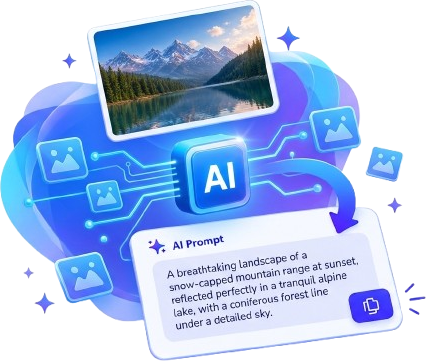
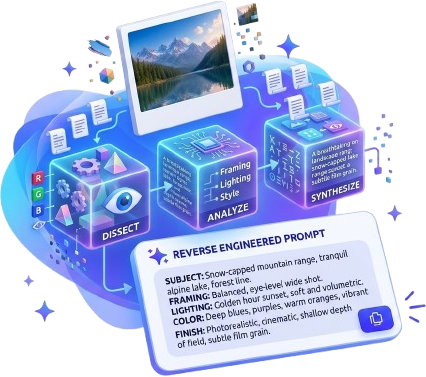
An image to prompt generator does more than describe a picture. A good description tells a person what they are looking at; a good prompt tells an image model how to build it. That means naming the subject precisely, but also the framing, the quality and direction of the light, the color palette and the finish of the image: grain, gloss, brushwork, render style. This tool asks one question of every image: what would I need to say to recreate something visually similar to this?
Detail such as texture, jewelry and fine lighting cues is what separates a generic prompt from a specific one. Images are resized to 1280 pixels before analysis, so extremely large files add nothing.
Crowded images produce a lot of competing detail. Crop to the part you want to recreate.
JPG artifacts can be mistaken for style, such as a “grainy” look that is only compression.
unless the interface is the point of the image.
The analysis breaks the image into the pieces a generation model responds to:
From those fields you get a short prompt for quick tests, a detailed prompt for control, and a negative prompt listing what to avoid, tuned to the style it detects.
who or what is in the frame, and where.
framing, placement, perspective and use of space.
lens or angle traits, stated only when the image shows visual evidence, such as shallow depth of field or wide-angle distortion. The tool will not invent focal lengths.
direction, softness, contrast, palette and grading.
medium, era, texture and mood.
copied exactly if clearly readable, otherwise left empty.
Image models do not read prompts the same way, so the platform selector reshapes the same analysis without calling the AI again:
compact descriptors separated by commas, an aspect ratio that matches your image, and --no terms for exclusions.
flowing natural-language sentences. Flux does not use negative prompts, so the negative tab explains how to fold exclusions into the main text.
weighted tags such as (subject:1.3) and a separate negative prompt field.
a conversational instruction, including the aspect ratio and exact text to render.
labelled plain text that works anywhere.
Treat the first prompt as a draft. Generate once, compare it to your reference, and change one thing at a time.
If the mood is off, edit the lighting sentence. If the subject drifts, move it to the front.
Use the Edit button to change the text directly; your edits are kept while you switch between prompt types and platforms.
When you want a different take on the analysis itself, Regenerate runs it again on the same image.


Pasting one prompt everywhere. A Midjourney prompt full of commas reads badly in a conversational tool. Switch the platform first.
Adding adjectives instead of specifics. “Stunning, beautiful, epic” says nothing. “Low sun from camera left, long soft shadows” does.
Forgetting the aspect ratio. The tool detects the closest standard ratio from your image and adds it where the platform supports it.
Expecting a negative prompt everywhere. Some models ignore it, which is why the Flux format explains an alternative.
Only analyze images you own or have permission to use. A prompt that describes composition, light and mood is a fair way to learn from a reference, but it should not be used to copy a specific artist’s distinctive work or to imitate real people. The tool describes people by visible attributes and does not identify anyone.
Input: JPG, PNG, WEBP up to 10 MB, or a direct image link
Output: short, detailed and negative prompts
Formats: Generic, Midjourney, Flux, Stable Diffusion, ChatGPT Image
Privacy: files are not stored on our server. Read how it works.
Also try: Video to Prompt